Transcription
 Captions (FCC/SDH)
 Transcript Editing & Proofreading
 Translation (text/audio/images)
 Subtitles
 Video Description (AD)


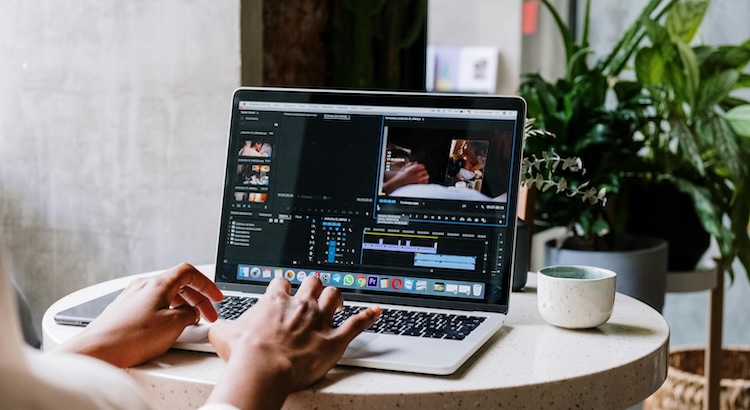
How to Easily Transcribe Audio and Video on a Chromebook
If you use a Chromebook for work, school, or content creation, you probably deal with a lot of audio and video:
-
Google Meet or Zoom meetings
-
Online classes and lectures
-
YouTube videos and webinars
-
Podcasts and interviews
-
Training and onboarding recordings
Having a text transcript of all that content makes life much easier. You can quickly scan, search, quote, and repurpose information without replaying the whole recording.
In this guide, you’ll learn simple, practical ways to transcribe audio and video on a Chromebook – from built-in tools to professional human transcription.
We’ll cover:
-
What you need before you start
-
Built-in Chromebook/Chrome options
-
Automatic (AI) transcription services in the browser
-
100% human-made transcription with GoTranscript
-
How to choose the best option for your use case
-
Tips to get the best accuracy
-
Frequently asked questions
1. What You Need Before You Start
Before you start transcribing on a Chromebook, make sure you have:
-
Your audio or video file
-
Stored locally on your Chromebook
-
Or accessible via Google Drive, YouTube, or another cloud service.
-
-
A stable internet connection
Most AI tools and human transcription services are online. -
A place to store your transcript
-
Google Docs
-
Google Keep
-
Any note-taking or text app you like.
-
-
Headphones (optional but helpful)
For manual review and editing without disturbing others.
2. Method 1 – Using Built-In ChromeOS/Chrome Tools (Good for Quick Personal Use)
Chromebooks are tightly integrated with the Chrome browser and Google tools. You can use a few built-in features to get rough transcripts without installing anything. These are great for personal notes, but not ideal for polished, client-facing work.
2.1. Using Live Caption in Chrome for On-Screen Audio/Video
Chromebooks support Live Caption, which can show captions for audio and video playing in the browser.
What it’s good for:
-
Understanding videos without sound
-
Quickly grabbing short quotes
-
Accessibility while watching content
How to turn on Live Caption (general steps):
-
Open Chrome on your Chromebook.
-
Go to Settings in Chrome.
-
Look for Accessibility or Advanced settings.
-
Find the Live Caption option and turn it on.
Now, when you play a video or audio in Chrome (for example, a YouTube video, a podcast site, or a web player), a caption box will appear with automatically generated text.
How to get a rough transcript from Live Caption:
-
While the media plays and captions appear, you can:
-
Pause and scroll through the captions box.
-
Copy text in small sections (if available), then paste it into a Google Doc or note.
-
Since Live Caption is meant primarily for viewing, you may need to manually type or copy parts. This works best for short clips or quick references, not long interviews or hour-long webinars.
Pros:
– Built-in and free
– Works directly in Chrome
– Great for accessibility and quick understandingCons:
– Not designed as a full transcription export tool
– Limited control over formatting
– Accuracy varies depending on audio quality and accents
2.2. Using ChromeOS Dictation (Voice Typing) to “Re-Speak” Content
Chromebooks include a Dictation (voice typing) feature you can enable in Accessibility. This allows you to speak while your words are turned into text in any text field.
You can use it in two ways:
-
Speak your own notes
-
“Re-speak” important sentences from a recording
How to enable Dictation (voice typing) on a Chromebook:
-
Click the clock in the bottom-right corner to open the system menu.
-
Open Settings.
-
Go to Accessibility.
-
Find Keyboard and text input or similar.
-
Turn on Dictation (or “Speak to type”).
You’ll usually see a microphone icon appear near the status area or in the shelf.
How to use Dictation for transcription:
-
Open a Google Doc or any text field on your Chromebook.
-
click the microphone icon to start Dictation.
-
Speak clearly into your Chromebook’s microphone.
-
Optionally, play the audio on another device and re-dictate what you hear.
-
Click the microphone again to stop.
All spoken text appears directly in your document. Then you can manually correct punctuation, speaker names, and any misheard words.
Best use cases:
– Short notes from meetings
– Summaries of recordings
– Quick, rough transcripts for personal use
3. Method 2 – Using Automatic (AI) Transcription Services in the Browser
Chromebooks are browser-first devices, which makes them perfect for online AI transcription tools. You don’t need to install heavy desktop software—everything runs via the browser.
These services typically work like this:
-
You upload your audio or video.
-
AI converts speech to text.
-
You download or copy the transcript and edit it yourself.
Typical workflow with AI transcription on a Chromebook:
-
Get your recording ready
-
Save your file in a supported format (MP3, WAV, M4A, MP4, etc.).
-
Keep it in your Chromebook’s local storage or Google Drive.
-
-
Open your browser (Chrome)
-
Go to your chosen AI transcription provider’s website.
-
-
Upload your audio or video
-
Use an upload button or drag-and-drop from your file manager.
-
Some tools also let you paste a YouTube or cloud link.
-
-
Set your transcription options
-
Select the spoken language.
-
Choose additional options such as timestamps, speaker detection (if available), or subtitle formats.
-
-
Let the AI process your file
-
The service will automatically transcribe the content.
-
-
Download and clean up the transcript
-
Export as a text file, Word document, or subtitle file.
-
Open it in Google Docs on your Chromebook and correct names, technical terms, and punctuation.
-
Pros:
– Fast turnaround
– Convenient in a browser on any Chromebook
– Affordable for large amounts of audioCons:
– AI can struggle with accents, noisy audio, or overlapping speech
– Mistakes with names, jargon, and numbers are common
– Requires careful proofreading
– Not ideal for legal, medical, or business-critical documents
For professional use, AI is best seen as a first draft, not a final product.
4. Method 3 – 100% Human-Made Transcription on a Chromebook with GoTranscript
When accuracy really matters – for clients, compliance, or publication – the most reliable approach is still human transcription.
GoTranscript offers 100% human-made transcription, which works perfectly with Chromebooks since everything runs through the browser.
When human transcription is the best choice
Consider human transcription if:
-
You have research interviews, focus groups, or user testing sessions
-
Content is legal, medical, financial, or technical
-
You’re dealing with multiple speakers, crosstalk, or heavy accents
-
Transcripts are going to be published or submitted (reports, papers, broadcasts)
-
You want subtitles or captions created accurately for your videos
How to use GoTranscript from a Chromebook
-
Collect your recordings
-
Download your Google Meet, Zoom, or other call recordings to your Chromebook.
-
Or place them in Google Drive and keep track of the file locations.
-
-
Sign in or create a GoTranscript account
-
Open Chrome on your Chromebook.
-
Sign in to your GoTranscript account or create a new one.
-
-
Place a transcription order
-
Choose Transcription (or subtitles/captions if needed).
-
Upload your audio or video file directly from your Chromebook or Google Drive.
-
Select language, turnaround time, and any extras like timestamps, verbatim transcription, or speaker labeling.
-
-
Let professional transcribers handle the work
-
Human transcribers carefully listen to your files.
-
Editors review transcripts to ensure high accuracy and proper formatting.
-
-
Download your transcripts on the Chromebook
-
When you receive a notification that your transcript is ready, log in.
-
Download the file in your preferred format (text, Word, subtitle formats, etc.).
-
Store it in Google Drive or locally and use it for study, analysis, or publishing.
-
Key advantages of GoTranscript:
– 100% human-made, high-accuracy transcripts
– Handles challenging audio and specialized terminology
– Supports multiple languages and accents
– Optional subtitles and captions for video content
If you use a Chromebook for school, research, consulting, media production, or corporate work, this workflow lets you stay fully cloud-based while offloading all the tedious transcription to experts.
5. Which Transcription Method Should You Choose on a Chromebook?
Here’s a quick comparison to help you decide:
| Method | Best For | Accuracy | Effort on Your Side |
|---|---|---|---|
| Live Caption in Chrome | Watching videos with captions, quick snippets | Low–Medium | High (manual copying/typing) |
| ChromeOS Dictation (voice typing) | Short notes, re-speaking key parts | Medium | High (you need to re-dictate) |
| Online AI transcription tools | Fast drafts and internal reference | Medium | Medium (proofreading needed) |
| Human-made transcription (GoTranscript service) | Professional, complex, or sensitive recordings | High | Low (upload and review only) |
Ask yourself:
-
Is this transcript just for me, to understand the content?
→ Live Caption, Dictation, or AI might be enough. -
Will I share, publish, or rely on this transcript professionally?
→ Human-made transcription is safer and saves you hours of cleanup.
6. Tips to Improve Transcription Quality on Chromebooks
Regardless of the method you use, these practices will improve your results:
-
Capture good audio from the start
-
Use a quality microphone for online meetings and interviews.
-
Avoid recording in noisy environments or echoey rooms.
-
-
Speak clearly and avoid talking over others
-
Ask participants in a meeting or interview to speak one at a time.
-
This is crucial for AI accuracy and also helps human transcribers.
-
-
Use headphones while reviewing or editing
-
When checking your transcript on a Chromebook, listen through headphones to catch small mishears and punctuation issues.
-
-
Keep track of speakers and terminology
-
Have a list of speaker names, department names, and technical terms.
-
This makes it much easier to label speakers and correct terms later.
-
-
Choose the correct language and region
-
In AI tools or order forms, make sure you select the correct language variant (e.g., US English vs. UK English).
-
-
For confidential or regulated content, avoid risky shortcuts
-
Use professional human transcription with strong security practices instead of generic AI tools when you handle sensitive legal, medical, or financial material.
-
7. Frequently Asked Questions
Can I transcribe audio and video on a Chromebook without installing anything?
Yes. You can use Live Caption in Chrome and ChromeOS Dictation from the Accessibility settings, plus online tools that run entirely in the browser. Chromebooks are designed to work with web apps, so you don’t need traditional desktop software.
Are Chromebooks powerful enough for transcription?
Yes. Since most transcription work (AI or human) happens on remote servers, your Chromebook just needs a stable internet connection and a browser. Even lower-spec Chromebooks can handle uploads and downloads just fine.
Can I transcribe files stored in Google Drive?
Absolutely. Many browser-based tools let you select files directly from Google Drive. For services that don’t, you can download the file to your Chromebook first and then upload it.
What if my internet connection is slow?
Slow internet mainly affects upload and download time. Once your files are uploaded, the processing itself happens on the service’s servers. For large or numerous files, plan uploads when your connection is more stable or less busy.
Can I get subtitles/captions instead of just a plain transcript?
Yes. With professional services like GoTranscript, you can request subtitles or closed captions for your videos. These files can be uploaded to video platforms or embedded in players, and you can manage everything from your Chromebook.